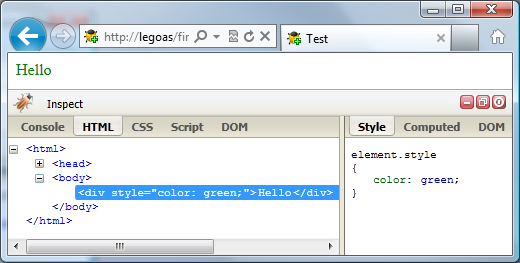
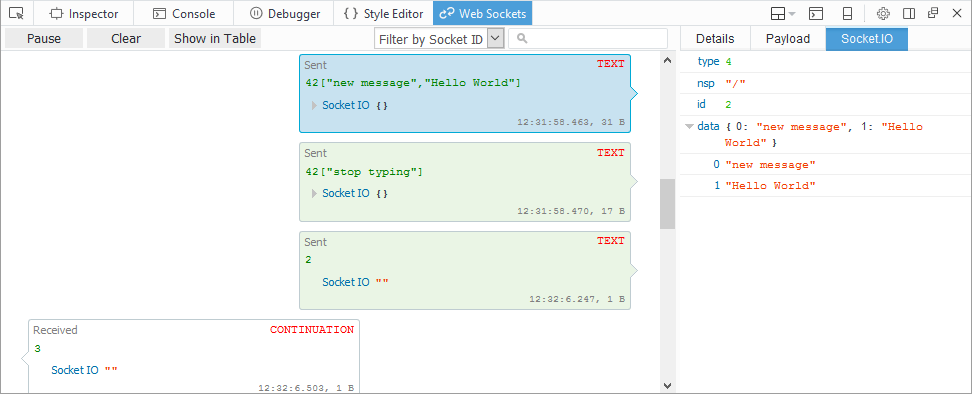
FBTrace Console

by Honza

I have already mentioned a few times how useful is FBTrace (made by John J. Barton) for debugging Firebug. So, for those who are interested how Firebug works internally, it's something I would definitely recommend to use.

As the name indicates, FBTrace represents support for tracing within Firebug, notice that it isn't part of the release version of Firebug. So, if you would like to try it out, you have to download a version that includes tracing support from public SVN repository. See this readme.txt for more details about individual branches.

At the present, I would recommend to use branch Firebug 1.2 as it's currently the version under development.

If you have managed to successfully install Firebug with tracing support, you should see a new panel called FBTrace. This panel shows many options (you can see them in the Options menu too) that represent various areas in Firebug internal framework. If you want to see some log messages related to a specific area, just click appropriate option (it's bold if it's on) and refresh the current page (or restart Firefox) - depends on specific option. Now, Firebug should print bunch of log messages into the system console window.

In order to see the system console, don't forget to launch Firefox with -console option on the command line.

FBTrace panel

I am using the console quite often (sometimes it's only the way how to track down what is actually happening) and I have soon realized how much I am missing the following:

  1. Quickly find out where is the piece of code that prints the message.
  2. Search within all messages whether specific log is there.
  3. Put a separator at the end of the list.
  4. Clear the log.

A few weeks ago, I couldn't resist and I have written down a simple replacement of the tedious and black system console. The new console is based on domplate - quite powerful UI template system in Firebug (I'll write something about this too) - it intercepts FBTrace's logs and displays it in more readable way.

Every message is expandable so, you can see additional information. E.g. there is a stack trace for each log (you can click it and see the source code).

There are also some actions available in the toolbar.

  1. Clear - removes all messages from the log.
  2. Find - displays standard find bar at the bottom of the window.
  3. Bookmark - puts a separator at the end of the list.
  4. Restart Firefox
  5. Exit Firefox

All these simple features helped me a lot. I haven't spent much time on testing (used with: WinXP, FF3, FB 1.2) as it's done mainly for my personal usage. But, if you want to explore more how Firebug's code works and you think this could help, download the new trace-console from here.

If it turns out to be really useful, it could be perhaps core part of the FBTrace in the future.

Enjoy!

New version of Firecookie is now available. It includes a few bug fixes and bunch of new features. Thanks for all the ideas and comments you have posted!

This version is intended as beta and I would like to keep it here for some time. Even if it's quite stable, I would appreciate some testing and make sure everything works fine. As soon as I get positive feedback, I'll move it to Mozilla add on site. The review process will be easy then :-)

Download Firecookie 0.5beta3

Firecookie home page
Firecookie on Mozilla.org

New features in v0.5 since v0.0.5 - big step ahead ;-) :

  1. List of cookies can be sorted by clicking on a column header (0.0.6).
  2. Click on a cookie event (cookie name) in the Console tab navigates the user to Cookie tab. (0.0.6)
  3. Cookies from all sub-domains of the current domain are displayed. (0.0.6)
  4. There is a new column with cookie size.
  5. The list can be filtered by cookie path (a filter option). So, only cookies matching the current path are displayed.
  6. Rejected cookies are displayed too (a filter option).
  7. Cookies from redirected domains are displayed too. This is useful e.g. in login systems, which can redirect the user over different domains while setting cookies.
  8. Cookies set from embedded iframes are displayed too.
  9. Columns in the cookie list are resizable. It's persistent and can be reset from context menu of the header.

And of course, if you would have any further ideas or comments please let me know! Especially the UI design is always tough (and your observation could have impact even on other features in Firebug). For instance, I am not sure about the way how the filtering is done...

I have finally got some time to write another piece of the tutorial. This time I’ll explain how to use an Options menu that is available in every Firebug’s panel. This menu is located at the right side of a tab-bar.

See an example of Console Options menu from Firebug 1.1

The main purpose of the menu (as the name clearly indicates) is to expose panel-specific options (preferences), so the user can access them and change theirs value if necessary.

Simple example

The menu is already built within Firbug’s UI. So, all we have to do is to provide a content. This is done by getOptionsMenuItems method that must be implemented in the specific panel object (i.e. HelloWorldPanel in our case).

function HelloWorldPanel() {}
HelloWorldPanel.prototype = extend(Firebug.Panel,
{
    // . . .
    getOptionsMenuItems: function(context)    {
        return [{
            label: "My Menu Item",
            nol10n: true,
            type: "checkbox",
            command: function() { alert("Hello from the Options menu!"); }
        }];
    }
});

This method is called by the framework when the user clicks on the Options menu - just before it’s displayed. Each object returned in the array represents a menu-item. Following properties are supported.

label (string) The label that will appear on the menu item.
nol10n (boolean) Indicates whether the label should be localized. *)
type
Specifies type of the menu.
checked (boolean) Indicates whether the element is checked or not.
disabled (boolean) Indicates whether the element is disabled or not.
image (image URL) The URL of the image to appear on the menu item.
command (js-function) java script menu item handler.

*) This is only for strings coming from firebug.properties file. Should be always set to true for third party strings.

Real options

Let’s develop more useful example that uses the menu for real options (preferences). First of all, we’ll define default preferences ...

pref("extensions.firebug.helloworld.option1", true);
pref("extensions.firebug.helloworld.option2", false);

... and put them into a prefs.js file, which is located at proper location within extension's directory structure.

helloworld@janodvarko.cz/
    chrome/
        content/
            helloworld/
                helloWorld.xul
                helloWorld.js
    defaults/
        preferences/
            prefs.js
    chrome.manifest
    install.rdf

Now, see new implementation of the getOptionsMenuItems method, which displays both new preferences and makes possible to change theirs values.

function HelloWorldPanel() {}
HelloWorldPanel.prototype = extend(Firebug.Panel,
{
    // . . .
    getOptionsMenuItems: function(context)
    {
        return [
            this.optionMenu("Option1", "helloworld.option1"),
            "-",
            this.optionMenu("Option2", "helloworld.option2")
        ];
    },

    optionMenu: function(label, option)
    {
        var value = Firebug.getPref(Firebug.prefDomain, option);
        return {
            label: label,
            nol10n: true,
            type: "checkbox",
            checked: value,
            command: bindFixed(Firebug.setPref, this, Firebug.prefDomain, option, !value)
        };
    }
});

As you can see, there is a new helper method optionMenu that creates a menu-item object. The method takes two parameters: a label and a preference name.

Notice that menu-item-separator is created just with simple "-" string.

The most interesting thing is probably the implementation of optionMenu method. First of all, we are utilizing get & setPref methods from Firebug namespace:

Firebug.getPref(prefDomain, name);
Firebug.setPref(prefDomain, name, value);

This example considers Firebug 1.2 (these methods are different in 1.1).

The usage is quite obvious. The first parameter is used to specify preference domain, the second specifies preference name and the third - new preference value. The domain should be "extensions.firebug" (there is a constant Firebug.prefDomain for that).

Further, there is a new bindFixed method. Could sound familiar to you as this pattern is often used in JS libraries (e.g. Prototype). In this example, bindFixed is used to bind a method (Firebug.setPref) to a handler (command), with three parameters (Firebug.prefDomain, option, !value).

The source code is worth a thousands words, so here is how the method looks like:

Firebug.bindFixed = function()
{
    var args = cloneArray(arguments), fn = args.shift(), object = args.shift();
    return function() { return fn.apply(object, args); }
};

Finally, if you want to test it, don't forget to open the about:config page in order to see how the preference is changing.

The extension can be downloaded here (you need Firebug 1.2 ).

I have been asked by a few people, why there is no support for managing cookies in Firebug. It's actually unbelievable that this great extension doesn't have that already. Even if there is a few nice Firefox extensions for cookie administration out there, it would be still very useful to have something like that directly within Firebug's UI. That's what they say...

Since I have some experience with Firebug's internal framework, I have reserved two entire weekends (and I have missed two movie-sessions with my friends) trying to accomplish the supplication. And here is what I have done. The extension is called Firecookie - it's for Firebug, heh :-) - and of course, you need to have Firebug installed if you want to check this out.

I have tested it with Firebug 1.05 and Firebug 1.1. It's also tested with Firefox 2.0 and Firefox 3.0b2 (Windows XP). All seem to be working well, but you know software is hard, so there might be some bugs ;-).

Anyway I would strongly recommend using entirely new Firebug 1.1 Beta, which is now available. Check it out John J. Barton, Justin Dolske and others have been working hard on it!

Please, drop me a line if you would have any ideas how to improve it. And of course, tell me if anything doesn't work as expected ;-)

The extension's home page is here.

Enjoy!

Next step in this tutorial is intended to show how a new button can be created within Firebug's toolbar. This part will demonstrate two things (a) how to create a new button that is associated with our "Hello World!" panel and (b) how to append a new button to an existing panel (it'll be the Net panel that is used to monitor network activities). There is also some info about a Model, which is important part of a Firebug extension.

Create button for Hello World! panel

In order to append a new button to our panel, the HelloWorld.xul file has to be modified. This file represents the FB overlay and has been introduced in the previous part.

<?xml version="1.0"?><overlay xmlns="http://www.mozilla.org/keymaster/gatekeeper/there.is.only.xul">
    <script src="chrome://helloworld/content/helloWorld.js" type="application/x-javascript"/>

    <commandset id="mainCommandSet">
        <command id="cmd_hwMyButton" oncommand="Firebug.HelloWorldModel.onMyButton(FirebugContext)"/>
    </commandset>

    <toolbar id="fbToolbar" align="center">
        <hbox id="fbToolbarInner" insertbefore="fbDetachButton" flex="1" align="center">
            <hbox id="fbHelloWorldButtons" insertafter="fbNetButtons">
                <toolbarseparator/>
                <toolbarbutton id="hwMyButton"
                    label="Say Hello" class="toolbar-text-button"
                    tooltiptext="Push to say hello" command="cmd_hwMyButton"/>

           </hbox>
       </hbox>
    </toolbar>
</overlay>

This code inserts new button at appropriate location within the Firebug's UI. Notice that our hwMyButton button uses command cmd_hwMyButton that is consequently associated with following javascript method.

Firebug.HelloWorldModel.onMyButton(FirebugContext)

There is a few new things to explain, but let's take a look at the source code first.

FBL.ns(function() { with (FBL) {
var panelName = "HelloWorld";
Firebug.HelloWorldModel = extend(Firebug.Module,
{
    showPanel: function(browser, panel) {
        var isHwPanel = panel &amp;&amp; panel.name == panelName;
        var hwButtons = browser.chrome.$("fbHelloWorldButtons");
        collapse(hwButtons, !isHwPanel);
    },

    onMyButton: function(context) {
        alert("Hello World!");
    }
});

function HelloWorldPanel() {}
HelloWorldPanel.prototype = extend(Firebug.Panel,
{
    name: panelName,
    title: "Hello World!",

    initialize: function() {
        Firebug.Panel.initialize.apply(this, arguments);
    }
});

Firebug.registerModule(Firebug.HelloWorldModel);
Firebug.registerPanel(HelloWorldPanel);

}});

First of all, there is a new object called HelloWorldModel. This object is derived from internal Model object and represents data model of the extension. Similarly to the Panel, the Model has to be registered within a global Firebug object.

From the MVC perspective the model could be seen as an entity representing a model and a controller at once - it can be used as a data container and handle some user actions at the same time. Important thing is that there is only one instance of the HelloWorldModel object per Firefox main window (browser.xul), which makes possible to share data among web pages within the same browser window.

There is even another object called Context (can be also interpreted as a data model). Every page with enabled Firebug has it's own instance of this object and it's used to store data associated with the page. You'll see that this object is passed as a parameter to many functions.

See the following UML diagram that depicts described relations.

Panel, Model and Context relations

It's not pure UML as in context of JavaScript there are no real classes and "Browser Window" and "Web pages" are just placeholders here (so I hope UML experts will forgive me ;-), but following should be obvious from it:

  • The Model object should be used for data shared among pages within the same browser window.
  • The Context object should be used for data associated with a web page.
  • The Panel object should be used to store presentation data (i.e. HTML)

Just to notice, that Panel has a reference to the Context object, which is set in initialize() method. This is why the predecessor method must be called.

The last important thing in this example is showPanel method.

    showPanel: function(browser, panel) {
        var isHwPanel = panel &amp;&amp; panel.name == panelName;
        var hwButtons = browser.chrome.$("fbHelloWorldButtons");
        collapse(hwButtons, !isHwPanel);
    },

This method is executed by Firebug's framework whenever a panel is displayed. This is the right place where to decide whether our set of buttons (identified as fbHelloWorldButtons) should be displayed or not. The first parameter browser - represents browser window (browser.xul) and the second parameter panel - the panel being activated. According to the panelName we can decide whether to collapse (hide) our button(s).

Notice that the collapse method comes from FBL namespace (about namespaces later).

The button should look like as follows.

A new button for Hello World! panel

Create button for an existing panel

Finally, let's take a look at how to overlay an existing set of buttons. This should be simple task now, see the modified helloWorld.xul overlay.

<?xml version="1.0"?>

<overlay xmlns="http://www.mozilla.org/keymaster/gatekeeper/there.is.only.xul">
    <script src="chrome://helloworld/content/helloWorld.js" type="application/x-javascript"/>

    <commandset id="mainCommandSet">
        <command id="cmd_hwMyButton" oncommand="Firebug.HelloWorldModel.onMyButton(FirebugContext)"/>
        <command id="cmd_hwDisableNetMonitoring"
            oncommand="Firebug.HelloWorldModel.onDisableNetMonitoring(FirebugContext)"/>

        </commandset>

    <toolbar id="fbToolbar" align="center">
        <hbox id="fbToolbarInner" insertbefore="fbDetachButton" flex="1" align="center">

            <hbox id="fbNetButtons">
                <toolbarseparator/>
                <toolbarbutton id="hwDisableNetMonitor"
                    label="Disable Net Monitoring" class="toolbar-text-button" type="checkbox"
                    tooltiptext="Press To Disable Network Monitoring"
                    command="cmd_hwDisableNetMonitoring"/>

            </hbox>

            <hbox id="fbHelloWorldButtons" insertafter="fbNetButtons">
                <toolbarseparator/>
                <toolbarbutton id="hwMyButton"
                    label="Say Hello" class="toolbar-text-button"
                    tooltiptext="Push to say hello" command="cmd_hwMyButton"/>

            </hbox>
        </hbox>
    </toolbar>
</overlay>

There is new overlay for fbNetButtons, which is identifier of an existing set of buttons (for the Net panel). And of course, appropriate javascript handler. So, a method has to be appended to the HelloWorldModel object.

Firebug.HelloWorldModel = extend(Firebug.Module,
{
    // . . .

    onDisableNetMonitoring: function(context) {
        alert("OK, the click is handled");
    }
});

And this is how it should look like.

A new button for Net panel

The extension can be downloaded here.

It's been a while since I have started contributing to Firebug. Everybody use this amazing Firefox extension and I am having great time with exploring the underlying architecture. Well, it was hard time at the beginning ;-) I had to dive into unknown waters and understand what's under the hood. I remember it quite exactly, I have spent many hours with debugging a debugger trying to understand how it works.

I was searching the web intensively and if anybody would like to enjoy the same journey, I would recommend to check out Christoph Dorn's awesome article on Extending Firebug. There is also a cool page about Firebug Internals written by John J. Barton. And last but not least source of information is certainly Firebug Group page, yep you can always ask there...

However, what I was really looking for was a step by step tutorial that starts with the familiar "Hello World!" application. I didn't find it. So, I decided to write down something by myself. Perhaps it will be useful for those programmers, who are interested in contributing to Firebug, extending Firebug or developing an entirely new extension for Firefox. So, here it is: Firebug tutorial for extension developers.

Hello World!

The first thing to do is to setup a structure of the extension. This step is easy if you are already familiar with Firefox extension development.

In this case, the directory structure should look like this:

helloworld@janodvarko.cz/
    chrome/
        content/
            helloworld/
                helloWorld.xul
                helloWorld.js
    chrome.manifest
    install.rdf

The most important files are obviously helloWorld.xul and helloWorld.js. These two files contains the actual Hello World! implementation. The other two files are used by Firefox to properly install the extension.
See the chrome.manifest first.

content helloworld chrome/content/helloworld/ xpcnativewrappers=no

overlay chrome://firebug/content/firebugOverlay.xul         chrome://helloworld/content/helloWorld.xul

The file specifies that there is a content under chrome/content/helloworld/ directory and that our helloWorld.xul represents an overlay for firebugOverlay.xul. If you are interested, see an article about chrome registration here.

The install.rdf contains standard information about the extension. No comment is needed for this, see detailed info about install manifests here if you want.

<?xml version="1.0"?><RDF xmlns="http://www.w3.org/1999/02/22-rdf-syntax-ns#"
  xmlns:em="http://www.mozilla.org/2004/em-rdf#">

  <Description about="urn:mozilla:install-manifest">
    <em:id>helloworld@janodvarko.cz</em:id>
    <em:version>0.0.1</em:version>

    <!-- Firefox -->
    <em:targetApplication>
      <Description>
        <em:id>{ec8030f7-c20a-464f-9b0e-13a3a9e97384}</em:id>
        <em:minVersion>1.5</em:minVersion>
        <em:maxVersion>3.0.0.*</em:maxVersion>
      </Description>
    </em:targetApplication>

    <!-- Extension -->
    <em:name>Hello World!</em:name>
    <em:description>Firebug Hello World! Extension</em:description>
    <em:creator>Jan Odvarko</em:creator>
    <em:homepageURL>http://www.janodvarko.cz</em:homepageURL>
  </Description>
</RDF>

The helloWorld.xul is currently almost empty (be patient there'll be more things later), only the helloWorld.js is included.

<?xml version="1.0"?>

<overlay xmlns="http://www.mozilla.org/keymaster/gatekeeper/there.is.only.xul">
  <script src="chrome://helloworld/content/helloWorld.js" type="application/x-javascript"/>
</overlay>

This is how the JS script looks like:

FBL.ns(function() { with (FBL) {

function HelloWorldPanel() {}
HelloWorldPanel.prototype = extend(Firebug.Panel,
{
    name: "HelloWorld",
    title: "Hello World!",

    initialize: function() {
      Firebug.Panel.initialize.apply(this, arguments);
    },
});

Firebug.registerPanel(HelloWorldPanel);

}});

The main and only purpose of helloWorld.js so far, is to create and register a new Firebug Panel (tab). Notice that a Panel plays the same role as a View in MVC (Model View Controller) design pattern. In other words, the Panel is intended to present data to the user.

So, there is a new object called HelloWorldPanel, which is extended from internal Firebug.Panel object. The extension mechanism is realized through extend function, which creates a new object and copies all properties from the first parameter (predecessor object - Firebug.Panel) and then all properties from the second parameter (our new panel - HelloWorldPanel) into it. The object is then returned from the function. You could see this as an imitation of class inheritance.

Our Panel has two properties and a method. Theirs meaning is quite obvious, a name is used to identify the panel (should be unique so, we can access it through getPanel method later) and a title (which is display name of the tab). The later should be localized, but don't worry about it now, we'll deal with these nitpickings later. There is even an initialize method. This is called automatically by the framework when the Panel is activated (displayed) at the first time. It's empty now, but it'll be useful for Panel initialization. Don't forget to call predecessor method, there is some initialization to be made.

Firebug.registerPanel(HelloWorldPanel);

Finally, the new panel object is registered and so, Firebug can ensure it's properly displayed.

Careful reader might have noticed that entire code is surrounded by a following code:

FBL.ns(function() { with (FBL) {

  // Panel definition

}});

This is how namespaces are realized in Firebug framework. It's smart and useful. This makes possible to avoid global variables and so, dangerous collisions. Something, which everybody should take care of. However let's just use it as it is for now, we'll fall in to this later.

Ok, that's it for now. See the following screen-shot that shows how the new panel should look like within Firebug's UI.

A new panel (tab) within Firebug.

The extension can be downloaded here.

Next time we'll take a look at how to create a new button for our panel and associate a logic with it...